I unplug my microphone when I’m not using it.
Partly because it’s a habit from years of remote work, partly because I don’t want macOS randomly deciding to use the wrong input when I’m not paying attention. Between meetings, or between days, my Shure MV7 is usually not connected.
That sounds fine in theory, until you join a Zoom call and everything seems fine, but one of the tools listening alongside Zoom is using the wrong audio input.
It gets worse if you use tools that depend on the system-level audio input, not just Zoom’s internal settings.
I wanted something simple:
- When an app like Zoom is actually being used, switch my input to my Shure MV7
- If the mic isn’t plugged in, don’t break anything
- Don’t require me to remember to run anything manually
Here’s how I ended up solving it with Shortcuts, Shortery, and a tiny shell script.
Zoom’s mic setting doesn’t change system audio
One thing that tripped me up for a while is how Zoom handles microphones on macOS.
Even if I explicitly select my Shure MV7 inside Zoom, macOS does not change the system-wide sound input. The system input stays whatever it was before, usually:
- my headphones with a built-in mic, or
- my Logitech Brio, which also has a mic
Zoom is happy. The system has no idea anything changed.
That’s fine if Zoom is the only thing that cares about audio. But it falls apart once you introduce other tools that rely on the system input.
In my case, it's an AI tool.
It doesn’t ask Zoom what mic you’re using. It just asks macOS, “what’s the current input device?” and uses that. If the system input is wrong, it will happily record the wrong thing.
That can lead to a few annoying outcomes:
- The AI tool records the wrong mic
- sometimes it picks up output audio instead
- occasionally you get feedback or echo loops that make the whole call feel broken
So you can end up in a weird state where Zoom is using the right mic, macOS thinks it’s something else, and everything downstream suffers.
Once I realized Zoom’s mic picker is basically sandboxed to Zoom, the solution became obvious: fix the input at the system level, not the app level.
That’s what this automation actually does.
The idea
Zoom has a bunch of states on macOS: launched, activated, deactivated, quit.
The one that matters here is activated. That’s the moment you actually bring Zoom to the foreground, which usually means you’re about to be on a call.
So the plan was:
- Watch for Zoom becoming active
- Run a Shortcut
- The Shortcut checks if my mic exists
- If it does, switch the system input to it
- If it doesn’t, fail quietly and move on with life
No popups, no prompts, no extra steps.
Watching app state with Shortery
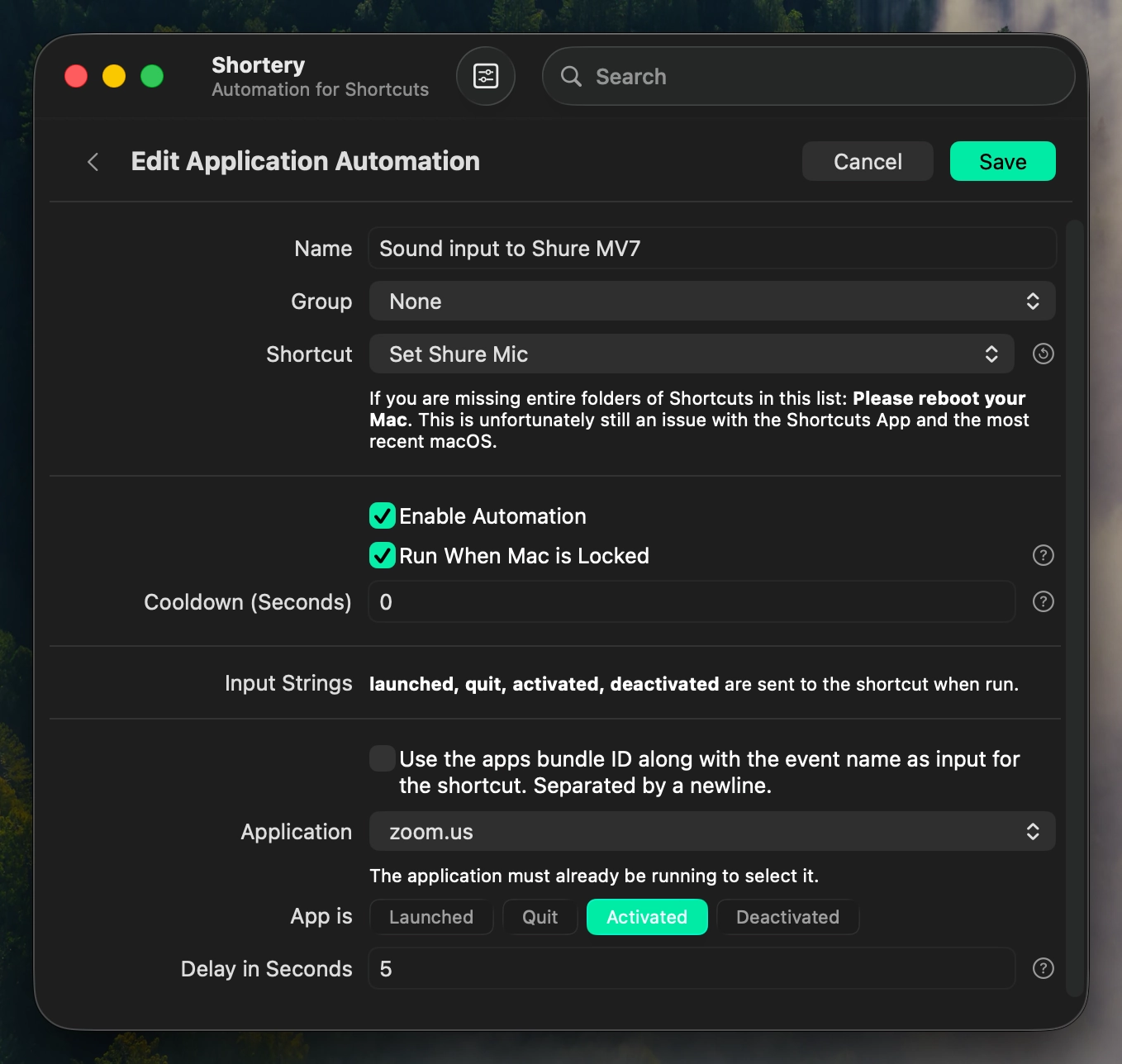
Apple Shortcuts can do a lot, but it still can’t reliably react to app lifecycle events on macOS.
That’s where Shortery comes in.
Shortery lets you trigger a Shortcut based all sorts of things like input changes, WiFi changes, app changes, system modes, and more.
I set up an automation that watches for the Zoom app and triggers when the app is activated.
There’s a small delay added, five seconds in my case, just to ensure I'm actually using the app before the audio switch runs.
Once that fires, Shortery runs my Shortcut.
The Shortcut itself
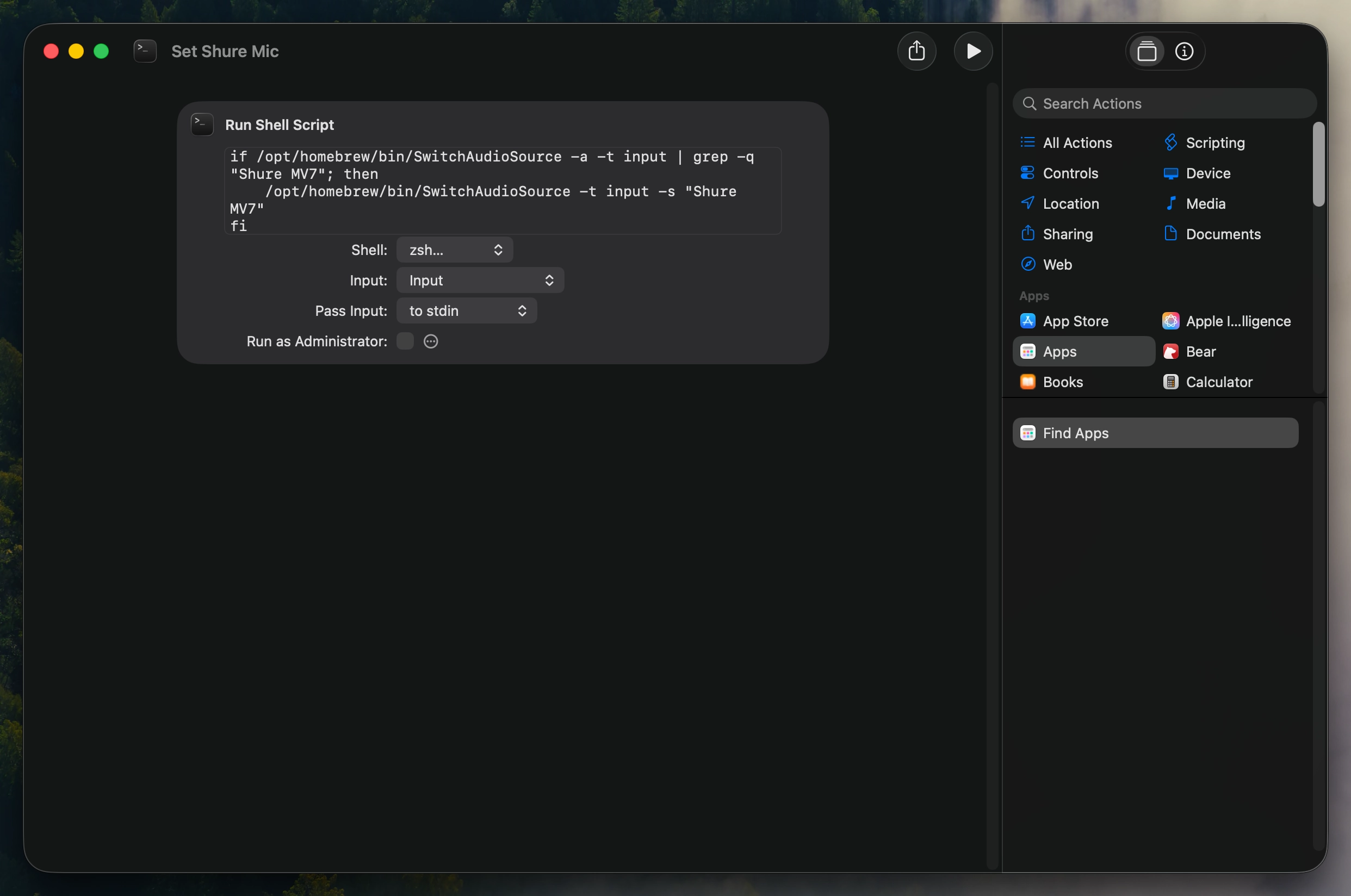
The Shortcut is intentionally boring. It’s just a shell script.
I’m using SwitchAudioSource, which you can install via Homebrew. It’s one of those utilities that feels like it should ship with macOS, but doesn’t.
The script does three things:
- lists available input devices
- checks if “Shure MV7” is in that list
- if it is, switches the system input to it
Here’s the core of it:
if /opt/homebrew/bin/SwitchAudioSource -a -t input | grep -q "Shure MV7"; then
  /opt/homebrew/bin/SwitchAudioSource -t input -s "Shure MV7"
fi
If the mic isn’t plugged in, the grep fails and nothing happens. No errors, no alerts, no drama.
When I’m traveling and using AirPods, Zoom just keeps using whatever input is already set.
Why this works well
A few small things make this setup feel solid instead of fragile:
- It only runs when an app is actually active
- It doesn’t assume the mic is present
- It doesn’t override my input constantly
- It requires zero thought once set up
I don’t have to remember to plug my mic in early. I don’t have to open Sound settings. I don’t have to run a menu bar app.
If the mic is there, it’s used. If it’s not, things still work.
That’s the bar for automation, at least for me.
This is a pattern, not just a mic trick
The real takeaway here isn’t about microphones.
It’s that macOS automation gets a lot more powerful once you stop thinking in terms of “run this shortcut” and start thinking in terms of state changes.
- An app becomes active
- A focus mode turns on
- A display configuration changes
- A network changes
- A time threshold is crossed
Shortery fills in a big gap that Apple still hasn’t addressed. Paired with Shortcuts and small shell scripts, you can build automations that feel native instead of hacky.
This one’s small, but it’s already saved me from mis-recorded meetings and a few accidental feedback loops more times than I can count.
And that’s usually a sign it was worth building.